- Published on
Hướng dẫn Deploy Next.js lên VPS: Self-hosting với Docker và Nginx
- Authors

- Name
- Xiro The Dev
Deploy Next.js lên VPS là một kỹ năng quan trọng cho các developer muốn tự quản lý infrastructure của mình. So với các platform như Vercel, việc self-host trên VPS cho bạn kiểm soát hoàn toàn, tùy chỉnh cao và chi phí có thể thấp hơn. Bài viết này sẽ hướng dẫn bạn deploy Next.js app lên VPS sử dụng Docker, PostgreSQL và Nginx.
Table of Contents
Tổng quan
Hướng dẫn này dựa trên next-self-host repository của Lee Robinson, một ví dụ về cách deploy Next.js app với PostgreSQL database trên Ubuntu server sử dụng Docker và Nginx.
Stack công nghệ:
| Component | Technology | Mục đích |
|---|---|---|
| Application | Next.js | React framework với SSR/SSG |
| Database | PostgreSQL | Relational database |
| Containerization | Docker & Docker Compose | Isolate và quản lý containers |
| Web Server | Nginx | Reverse proxy, SSL termination, static files |
| SSL | Let's Encrypt | HTTPS encryption |
| OS | Ubuntu Linux | Server operating system |
Tại sao Self-hosting?
Ưu điểm:
- ✅ Kiểm soát hoàn toàn infrastructure
- ✅ Chi phí có thể thấp hơn (không phụ thuộc vào usage-based pricing)
- ✅ Tùy chỉnh cao (cài đặt bất kỳ phần mềm nào)
- ✅ Hiểu rõ cách hệ thống hoạt động
- ✅ Không bị giới hạn bởi platform rules
Nhược điểm:
- ❌ Cần quản lý và maintain server
- ❌ Trách nhiệm về security và updates
- ❌ Cần kiến thức về DevOps
- ❌ Không có managed scaling tự động
Prerequisites
Trước khi bắt đầu, bạn cần chuẩn bị:
1. Domain Name
Mua một domain name và chuẩn bị cấu hình DNS:
- Tạo A record trỏ đến IP của VPS
- Thời gian propagate: thường 5-30 phút, có thể đến 48 giờ
2. VPS Server
Yêu cầu tối thiểu cho Next.js app:
- RAM: 2GB+ (khuyến nghị 4GB+)
- CPU: 2 cores+ (khuyến nghị 4 cores)
- Storage: 20GB+ (khuyến nghị 40GB+)
- OS: Ubuntu 20.04 LTS hoặc mới hơn
Nơi mua VPS:
- DigitalOcean (Droplets)
- AWS EC2
- Azure VMs
- Linode
- Vultr
3. Kiến thức cơ bản
- SSH và command line
- Git basics
- Hiểu cơ bản về Docker
- Quen thuộc với Next.js
Kiến trúc Deployment
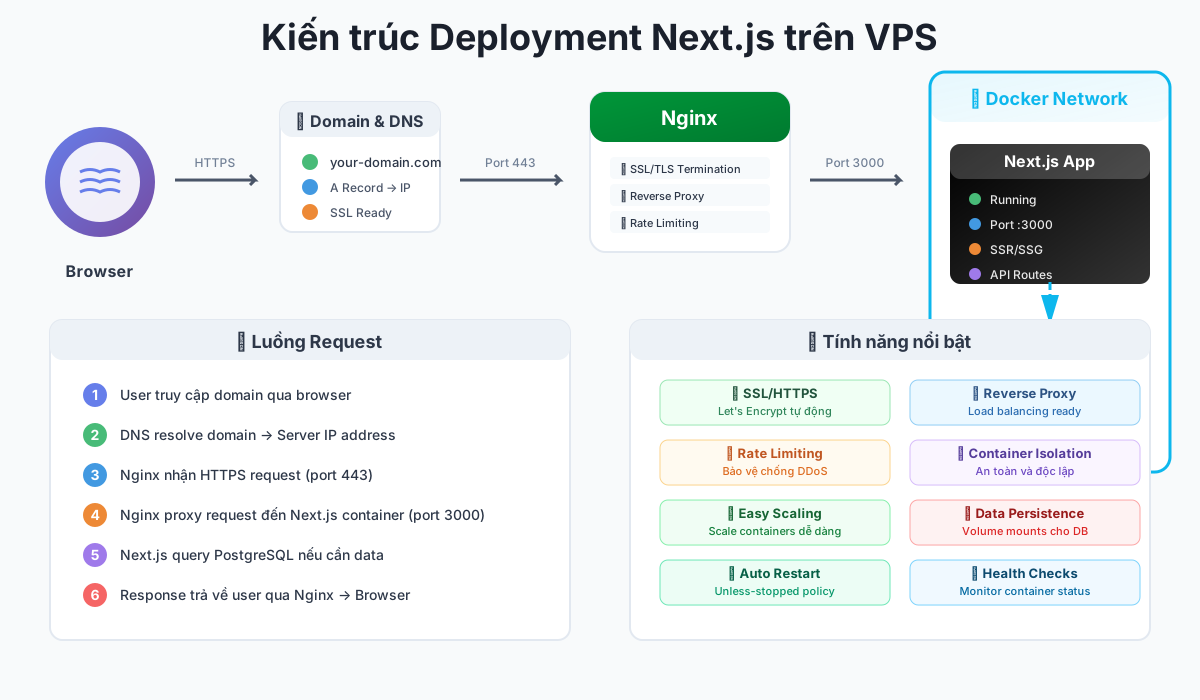
Luồng request:
User → Domain → DNS → Nginx (Port 80/443)
                        ↓
                   Docker Network
                        ↓
              ┌─────────┴─────────┐
              ↓                   ↓
         Next.js App         PostgreSQL DB
        (Port 3000)         (Port 5432)
Các thành phần:
- Nginx: Reverse proxy, xử lý SSL, serve static files
- Next.js Container: Chạy Next.js application
- PostgreSQL Container: Database server
- Docker Network: Kết nối các containers
Setup Server
1. SSH vào Server
ssh root@your_server_ip
# hoặc nếu dùng non-root user
ssh user@your_server_ip
2. Update hệ thống
sudo apt update && sudo apt upgrade -y
3. Cài đặt các packages cơ bản
sudo apt install -y curl wget git build-essential
Cài đặt Docker và Docker Compose
Cài đặt Docker
# Remove old versions
for pkg in docker.io docker-doc docker-compose docker-compose-v2 podman-docker containerd runc; do sudo apt-get remove $pkg; done

# Add Docker's official GPG key:
sudo apt-get update
sudo apt-get install ca-certificates curl
sudo install -m 0755 -d /etc/apt/keyrings
sudo curl -fsSL https://download.docker.com/linux/ubuntu/gpg -o /etc/apt/keyrings/docker.asc
sudo chmod a+r /etc/apt/keyrings/docker.asc

# Add the repository to Apt sources:
echo \
  "deb [arch=$(dpkg --print-architecture) signed-by=/etc/apt/keyrings/docker.asc] https://download.docker.com/linux/ubuntu \
  $(. /etc/os-release && echo "${UBUNTU_CODENAME:-$VERSION_CODENAME}") stable" | \
sudo tee /etc/apt/sources.list.d/docker.list > /dev/null
sudo apt-get update

# Install latest version
sudo apt-get install docker-ce docker-ce-cli containerd.io docker-buildx-plugin docker-compose-plugin

# Start Docker service
sudo systemctl status docker
sudo systemctl start docker

# Verify installation
docker --version
Thêm user vào docker group (optional)
sudo usermod -aG docker $USER
newgrp docker
Setup Nginx
Phần này hướng dẫn cài đặt và cấu hình Nginx trên Ubuntu 20.04, dựa trên hướng dẫn chính thức của DigitalOcean.
Cài đặt Nginx
# Update package index
sudo apt update

# Install Nginx
sudo apt install nginx

# Verify installation
nginx -v
Điều chỉnh Firewall
Trước khi kiểm tra Nginx, bạn cần điều chỉnh firewall để cho phép traffic:
# Check firewall status
sudo ufw status

# Nếu firewall chưa active, enable nó
sudo ufw enable

# Allow OpenSSH (quan trọng - nếu không bạn có thể bị lock out)
sudo ufw allow 'OpenSSH'

# Allow Nginx traffic
sudo ufw allow 'Nginx Full'
# Hoặc chỉ cho phép HTTP/HTTPS riêng:
# sudo ufw allow 'Nginx HTTP'
# sudo ufw allow 'Nginx HTTPS'

# Hoặc cho phép theo port:
# sudo ufw allow 80/tcp
# sudo ufw allow 443/tcp

# Verify firewall rules
sudo ufw status
WARNING
Quan trọng: Luôn cho phép OpenSSH trước khi enable firewall, nếu không bạn có thể bị lock out khỏi server!
Kiểm tra Web Server
Sau khi cài đặt và cấu hình firewall:
# Check Nginx status
sudo systemctl status nginx

# Nếu chưa chạy, start Nginx
sudo systemctl start nginx

# Enable Nginx để tự động start khi reboot
sudo systemctl enable nginx
Kiểm tra Nginx hoạt động:
- Truy cập
http://your_server_iptrong browser - Hoặc dùng curl:
curl http://localhost
Bạn sẽ thấy Nginx welcome page nếu cài đặt thành công.
Quản lý Nginx Process
Các lệnh quản lý Nginx thường dùng:
| Lệnh | Mô tả |
|---|---|
sudo systemctl stop nginx | Dừng Nginx |
sudo systemctl start nginx | Khởi động Nginx |
sudo systemctl restart nginx | Khởi động lại Nginx |
sudo systemctl reload nginx | Reload config không dừng service |
sudo systemctl status nginx | Kiểm tra trạng thái |
sudo systemctl disable nginx | Tắt auto-start |
sudo systemctl enable nginx | Bật auto-start |
Reload vs Restart:
reload: Load config mới mà không drop connections (khuyên dùng cho production)restart: Dừng và start lại service (có thể drop connections)
Cấu hình Server Blocks
Server blocks cho phép host nhiều domain trên một server. Tạo server block cho Next.js app:
# Tạo file config cho domain của bạn
sudo nano /etc/nginx/sites-available/your-domain.com
Nội dung file config cơ bản cho Next.js:
server {
    listen 80;
    listen [::]:80;

    server_name your-domain.com www.your-domain.com;

    # Logging
    access_log /var/log/nginx/your-domain.access.log;
    error_log /var/log/nginx/your-domain.error.log;

    location / {
        proxy_pass http://localhost:3000;
        proxy_http_version 1.1;
        proxy_set_header Upgrade $http_upgrade;
        proxy_set_header Connection 'upgrade';
        proxy_set_header Host $host;
        proxy_set_header X-Real-IP $remote_addr;
        proxy_set_header X-Forwarded-For $proxy_add_x_forwarded_for;
        proxy_set_header X-Forwarded-Proto $scheme;
        proxy_cache_bypass $http_upgrade;
    }
}
Kích hoạt Server Block
Sau khi tạo file config:
# Tạo symbolic link để enable site
sudo ln -s /etc/nginx/sites-available/your-domain.com /etc/nginx/sites-enabled/

# Test Nginx config (quan trọng - kiểm tra syntax)
sudo nginx -t

# Nếu test thành công, reload Nginx
sudo systemctl reload nginx

# Remove default site (optional)
sudo rm /etc/nginx/sites-enabled/default
Cấu trúc file và thư mục Nginx quan trọng
| File/Directory | Mô tả |
|---|---|
/etc/nginx/nginx.conf | File config chính của Nginx |
/etc/nginx/sites-available/ | Chứa server block configs (chưa active) |
/etc/nginx/sites-enabled/ | Symbolic links đến active server blocks |
/var/www/html/ | Default web root directory |
/var/log/nginx/access.log | Access logs |
/var/log/nginx/error.log | Error logs |
/etc/nginx/snippets/ | Reusable config snippets |
Kiểm tra cấu hình
# Test cấu hình (quan trọng - luôn chạy trước khi reload)
sudo nginx -t

# Nếu có lỗi, xem error log
sudo tail -f /var/log/nginx/error.log

# Xem access log
sudo tail -f /var/log/nginx/access.log
TIP
Luôn chạy sudo nginx -t trước khi reload/restart Nginx để tránh làm down server do config sai!
Cấu hình Next.js Application
1. Clone Repository
git clone https://github.com/leerob/next-self-host.git
cd next-self-host
2. Cấu trúc Project
Dựa trên next-self-host repo, project có cấu trúc:
next-self-host/
├── app/                   # Next.js app directory
├── public/                # Static files
├── Dockerfile             # Container definition
├── docker-compose.yml     # Multi-container setup
├── deploy.sh              # Deployment script
├── update.sh              # Update script
├── next.config.ts         # Next.js configuration
├── package.json           # Dependencies
└── .env                   # Environment variables
3. Dockerfile
Dockerfile mẫu cho Next.js:
FROM oven/bun:alpine AS base
# Stage 1: Install dependencies
FROM base AS deps
WORKDIR /app
COPY package.json bun.lockb ./
RUN bun install --frozen-lockfile
# Stage 2: Build the application
FROM base AS builder
WORKDIR /app
COPY /app/node_modules ./node_modules
COPY . .
RUN bun run build
# Stage 3: Production server
FROM base AS runner
WORKDIR /app
ENV NODE_ENV=production
COPY /app/public ./public
COPY /app/.next/standalone ./
COPY /app/.next/static ./.next/static
EXPOSE 3000
CMD ["bun", "run", "server.js"]
4. docker-compose.yml
services:
  web:
    build: .
    ports:
      - '3000:3000'
    environment:
      - NODE_ENV=production
    depends_on:
      - db
    networks:
      - my_network

  db:
    image: postgres:latest
    environment:
      POSTGRES_USER: ${POSTGRES_USER}
      POSTGRES_PASSWORD: ${POSTGRES_PASSWORD}
      POSTGRES_DB: ${POSTGRES_DB}
    ports:
      - '5432:5432'
    volumes:
      - postgres_data:/var/lib/postgresql/data
    networks:
      - my_network

  cron:
    image: alpine/curl
    command: >
      sh -c "
        echo '*/10 * * * * curl -X POST http://web:3000/db/clear' > /etc/crontabs/root && \
        crond -f -l 2
      "
    depends_on:
      - web
    networks:
      - my_network

volumes:
  postgres_data:

networks:
  my_network:
    name: my_network
    driver: bridge
Cấu hình PostgreSQL
Database Setup
Sau khi containers chạy, setup database schema:
# Vào PostgreSQL container
docker exec -it myapp-db-1 sh

# Install PostgreSQL client
apk add --no-cache postgresql-client

# Connect to database
psql -U myuser -d mydatabase

# Tạo table (ví dụ)
CREATE TABLE IF NOT EXISTS "todos" (
  "id" serial PRIMARY KEY NOT NULL,
  "content" varchar(255) NOT NULL,
  "completed" boolean DEFAULT false,
  "created_at" timestamp DEFAULT now()
);
Sử dụng Drizzle ORM
Nếu project sử dụng Drizzle (như trong repo):
# Install dependencies
npm install

# Run migrations
npm run db:migrate

# Hoặc sử dụng Drizzle Studio
npm run db:studio
Deploy Script
Deploy script tự động hóa toàn bộ quá trình deployment. Dựa trên deploy.sh từ repo:
Các bước script thực hiện:
| Bước | Công việc | Chi tiết |
|---|---|---|
| 1. Setup Packages | Cài đặt dependencies | curl, git, Docker, Docker Compose, Nginx |
| 2. Clone Repository | Download source code | Clone từ GitHub hoặc từ local |
| 3. Generate SSL | Tạo SSL certificate | Sử dụng Certbot (Let's Encrypt) |
| 4. Build Application | Build Next.js app | Docker build với Dockerfile |
| 5. Configure Nginx | Setup reverse proxy | Cấu hình HTTPS, rate limiting |
| 6. Setup Database | Initialize PostgreSQL | Tạo database và tables |
| 7. Start Services | Khởi động containers | docker-compose up -d |
| 8. Setup Cron | Automated tasks | Các job định kỳ (optional) |
Sử dụng Deploy Script
# Download script
curl -o ~/deploy.sh https://raw.githubusercontent.com/leerob/next-self-host/main/deploy.sh

# Chỉnh sửa các biến
nano ~/deploy.sh
# Thay đổi: EMAIL, DOMAIN_NAME

# Chạy script
chmod +x ~/deploy.sh
./deploy.sh
Ví dụ deploy.sh (tự tạo)
#!/bin/bash

set -e

# Configuration
EMAIL="your-email@example.com"
DOMAIN="your-domain.com"
PROJECT_DIR="/opt/nextjs-app"

echo "Starting deployment..."

# Update system
apt update && apt upgrade -y

# Install Docker
curl -fsSL https://get.docker.com -o get-docker.sh
sh get-docker.sh

# Install Docker Compose
curl -L "https://github.com/docker/compose/releases/latest/download/docker-compose-$(uname -s)-$(uname -m)" -o /usr/local/bin/docker-compose
chmod +x /usr/local/bin/docker-compose

# Install Nginx
apt install -y nginx

# Clone repository
git clone https://github.com/leerob/next-self-host.git $PROJECT_DIR
cd $PROJECT_DIR

# Generate SSL certificate
apt install -y certbot python3-certbot-nginx
certbot --nginx -d $DOMAIN --non-interactive --agree-tos -m $EMAIL

# Build and start containers
docker-compose build
docker-compose up -d

echo "Deployment completed!"
SSL Certificate với Let's Encrypt
Cài đặt Certbot
sudo apt install -y certbot python3-certbot-nginx
Generate SSL Certificate
# Automatic configuration với Nginx
sudo certbot --nginx -d your-domain.com

# Hoặc chỉ generate certificate
sudo certbot certonly --nginx -d your-domain.com
Auto-renewal
Certbot tự động setup cron job để renew certificate:
# Test renewal
sudo certbot renew --dry-run

# Check renewal status
sudo systemctl status certbot.timer
Rate Limiting và Security
Nginx Rate Limiting
Cấu hình rate limiting trong Nginx để bảo vệ server:
# /etc/nginx/nginx.conf
http {
    limit_req_zone $binary_remote_addr zone=api_limit:10m rate=10r/s;

    server {
        location /api {
            limit_req zone=api_limit burst=20 nodelay;
            proxy_pass http://localhost:3000;
        }
    }
}
Security Headers
Thêm security headers trong Nginx config:
server {
    # SSL configuration
    ssl_certificate /etc/letsencrypt/live/your-domain.com/fullchain.pem;
    ssl_certificate_key /etc/letsencrypt/live/your-domain.com/privkey.pem;

    # Security headers
    add_header X-Frame-Options "SAMEORIGIN" always;
    add_header X-Content-Type-Options "nosniff" always;
    add_header X-XSS-Protection "1; mode=block" always;
    add_header Strict-Transport-Security "max-age=31536000; includeSubDomains" always;

    # Proxy settings
    location / {
        proxy_pass http://localhost:3000;
        proxy_http_version 1.1;
        proxy_set_header Upgrade $http_upgrade;
        proxy_set_header Connection 'upgrade';
        proxy_set_header Host $host;
        proxy_set_header X-Real-IP $remote_addr;
        proxy_set_header X-Forwarded-For $proxy_add_x_forwarded_for;
        proxy_set_header X-Forwarded-Proto $scheme;
        proxy_cache_bypass $http_upgrade;
    }
}
Firewall Configuration
# Install UFW (nếu chưa có)
sudo apt install -y ufw

# Allow SSH
sudo ufw allow 22/tcp

# Allow HTTP và HTTPS
sudo ufw allow 80/tcp
sudo ufw allow 443/tcp

# Enable firewall
sudo ufw enable

# Check status
sudo ufw status
Update và Maintenance
Update Script
Sử dụng update.sh để update application:
#!/bin/bash

set -e

cd /opt/nextjs-app

# Pull latest code
git pull origin main

# Rebuild containers
docker-compose build

# Restart services
docker-compose up -d

# Clean up old images
docker image prune -f

echo "Update completed!"
Maintenance Commands
| Mục đích | Command | Mô tả |
|---|---|---|
| Check containers | docker-compose ps | Xem trạng thái containers |
| View logs | docker-compose logs web | Xem logs của Next.js app |
| View DB logs | docker-compose logs db | Xem logs của PostgreSQL |
| Restart services | docker-compose restart | Khởi động lại tất cả services |
| Stop services | docker-compose down | Dừng và xóa containers |
| Start services | docker-compose up -d | Khởi động containers trong background |
| Restart Nginx | sudo systemctl restart nginx | Khởi động lại Nginx |
| Enter Next.js container | docker exec -it myapp-web-1 sh | Vào trong container |
| Enter DB container | docker exec -it myapp-db-1 psql -U user -d db | Vào PostgreSQL CLI |
Backup Strategy
| Loại Backup | Tần suất | Cách thực hiện |
|---|---|---|
| Database Backup | Daily | pg_dump hoặc Docker volume backup |
| Application Code | Per deployment | Git repository |
| Environment Variables | On changes | Secure storage (vault, encrypted file) |
| Docker Volumes | Weekly | Volume backup scripts |
Backup Database
# Backup PostgreSQL
docker exec myapp-db-1 pg_dump -U myuser mydatabase > backup_$(date +%Y%m%d).sql

# Restore from backup
docker exec -i myapp-db-1 psql -U myuser mydatabase < backup_20250101.sql
Troubleshooting
Các vấn đề thường gặp
| Vấn đề | Nguyên nhân có thể | Giải pháp |
|---|---|---|
| Container không start | Docker service không chạy | sudo systemctl start docker |
| Port đã được sử dụng | Port 3000/80/443 đã bị chiếm | sudo lsof -i :3000 và kill process |
| SSL certificate fail | DNS chưa propagate | Đợi DNS update, kiểm tra dig your-domain.com |
| Database connection error | Connection string sai | Kiểm tra DATABASE_URL trong .env |
| Nginx 502 Bad Gateway | Next.js app không chạy | Kiểm tra docker-compose logs web |
| Build failed | Dependencies issues | Xóa node_modules và rebuild |
| Permission denied | User không có quyền | sudo chown -R user:user /opt/nextjs-app |
Debug Commands
# Check Docker containers
docker ps -a

# Check Docker logs
docker-compose logs --tail=100 web

# Check Nginx logs
sudo tail -f /var/log/nginx/error.log
sudo tail -f /var/log/nginx/access.log

# Check system resources
htop
df -h  # Disk space
free -h  # Memory

# Check network
sudo netstat -tulpn | grep :3000
sudo netstat -tulpn | grep :80
Common Fixes
Issue: Next.js app không respond
# Restart containers
docker-compose restart

# Rebuild containers
docker-compose build --no-cache
docker-compose up -d
Issue: Database connection refused
# Check database container
docker-compose ps db

# Check database logs
docker-compose logs db

# Verify connection string
docker exec myapp-web-1 env | grep DATABASE_URL
Issue: SSL certificate không renew
# Manual renewal
sudo certbot renew

# Check certificate expiry
sudo certbot certificates
Best Practices
1. Environment Variables
| Biến | Mô tả | Bảo mật |
|---|---|---|
DATABASE_URL | PostgreSQL connection string | ✅ Không commit vào Git |
NODE_ENV | Environment (production/development) | ✅ Set trong Docker |
NEXT_PUBLIC_* | Public environment variables | ⚠️ Sẽ exposed trong client |
API_KEYS | Third-party API keys | ✅ Không expose public |
Security:
- Sử dụng
.envfile và thêm vào.gitignore - Không commit sensitive data
- Sử dụng secrets management (AWS Secrets, Vault)
2. Docker Best Practices
| Practice | Lý do | Implementation |
|---|---|---|
| Multi-stage builds | Giảm image size | Separate build và runtime stages |
| Non-root user | Security | Run container với non-root user |
| .dockerignore | Faster builds | Exclude node_modules, .git |
| Health checks | Auto-recovery | Healthcheck trong docker-compose |
| Resource limits | Prevent resource exhaustion | Set CPU/memory limits |
3. Next.js Optimization
| Feature | Benefit | Configuration |
|---|---|---|
| Image Optimization | Reduce bandwidth | Next/Image với image loader |
| Static Generation | Faster pages | generateStaticParams |
| ISR (Incremental Static Regeneration) | Fresh content | revalidate option |
| Caching | Better performance | Cache headers, Redis |
| Middleware | Request processing | middleware.ts |
4. Monitoring
Setup monitoring để theo dõi:
| Metric | Tool | Purpose |
|---|---|---|
| Server Resources | htop, Prometheus | CPU, RAM, Disk usage |
| Application Logs | Docker logs, ELK | Debug và error tracking |
| Uptime | UptimeRobot, Pingdom | Monitor availability |
| Performance | New Relic, Datadog | APM monitoring |
| Errors | Sentry | Error tracking |
5. Backup và Disaster Recovery
| Component | Backup Method | Frequency |
|---|---|---|
| Database | pg_dump | Daily |
| Docker Volumes | Volume backup | Weekly |
| Configuration Files | Git repository | On changes |
| SSL Certificates | Let's Encrypt auto-renew | Automatic |
6. Security Checklist
- ✅ Keep system updated
- ✅ Use strong passwords
- ✅ Enable firewall (UFW)
- ✅ SSH key authentication (disable password)
- ✅ Regular security audits
- ✅ Monitor logs for suspicious activity
- ✅ Use HTTPS only
- ✅ Security headers trong Nginx
- ✅ Rate limiting
- ✅ Database access restrictions
Kết luận
Deploy Next.js lên VPS là một quá trình phức tạp nhưng mang lại nhiều lợi ích: kiểm soát hoàn toàn, chi phí linh hoạt và học hỏi về infrastructure. Với Docker và Nginx, bạn có thể setup một production-ready deployment tương tự như các managed platforms.
Điểm mấu chốt
- ✅ Docker simplifies deployment - Containerization giúp dễ quản lý và scale
- ✅ Nginx as reverse proxy - Xử lý SSL, static files, và load balancing
- ✅ PostgreSQL for data - Reliable database solution
- ✅ Automation is key - Deploy scripts giúp tiết kiệm thời gian
- ✅ Security matters - SSL, firewall, và monitoring là bắt buộc
Tài nguyên tham khảo
- 📦 next-self-host Repository - Source code mẫu
- 📹 Self Hosting Tutorial Video - Video hướng dẫn chi tiết
- 📚 Next.js Deployment Docs
- 🐳 Docker Documentation
- 🌐 Nginx Documentation
Bước tiếp theo
- Setup VPS: Mua và cấu hình VPS server
- Deploy thử nghiệm: Chạy deploy script trên test environment
- Customize: Tùy chỉnh theo nhu cầu của bạn
- Monitor: Setup monitoring và alerting
- Optimize: Tối ưu performance và costs
TIP
Bắt đầu với staging: Trước khi deploy production, hãy test trên staging environment để đảm bảo mọi thứ hoạt động đúng!