- Published on
Deploying PHP to a VPS: Self-hosting with Docker and Nginx
- Authors

- Name
- Xiro The Dev
Deploying PHP to a VPS is an essential skill for developers who want to manage their own infrastructure. Compared to shared hosting services, self‑hosting on a VPS gives you full control, high customizability, and better performance. This article walks you through deploying a PHP app to a VPS using Docker, MySQL, and Nginx.
Table of Contents
Overview
This guide walks you through deploying a simple PHP application with a MySQL database on an Ubuntu server using Docker and Nginx. We will use an example from the examples directory in this repository.
📦 View source code on GitHubTech stack
| Component | Technology | Purpose |
|---|---|---|
| Application | PHP 8.2 | Server‑side scripting language |
| Database | MySQL 8.0 | Relational database |
| Containerization | Docker & Docker Compose | Isolate and manage containers |
| Web Server | Nginx | Reverse proxy, SSL termination, PHP‑FPM handler |
| PHP Runtime | PHP‑FPM | FastCGI Process Manager for PHP |
| SSL | Let's Encrypt | HTTPS encryption |
| OS | Ubuntu Linux | Server operating system |
Why self‑host PHP?
Pros:
- ✅ Full control over your infrastructure
- ✅ Potentially cheaper than managed hosting
- ✅ Customize PHP extensions and configuration
- ✅ Deep understanding of how your system works
- ✅ Not limited by hosting provider rules
Cons:
- ❌ You must manage and maintain the server
- ❌ You are responsible for security and updates
- ❌ Requires DevOps knowledge
- ❌ No automatic managed scaling
Prerequisites
Before you start, you should have:
1. Domain name
Purchase a domain name and configure DNS:
- Create an A record pointing to your VPS IP
- Propagation time: usually 5–30 minutes, up to 48 hours
2. VPS server
Minimum requirements for a small PHP app:
- RAM: 1 GB+ (2 GB+ recommended)
- CPU: 1 core+ (2 cores recommended)
- Storage: 20 GB+ (40 GB+ recommended)
- OS: Ubuntu 20.04 LTS or newer
Where to buy a VPS:
- DigitalOcean (Droplets)
- AWS EC2
- Azure VMs
- Linode
- Vultr
3. Basic knowledge
- SSH and command line
- Git basics
- Basic understanding of Docker
- Familiarity with PHP
Deployment Architecture
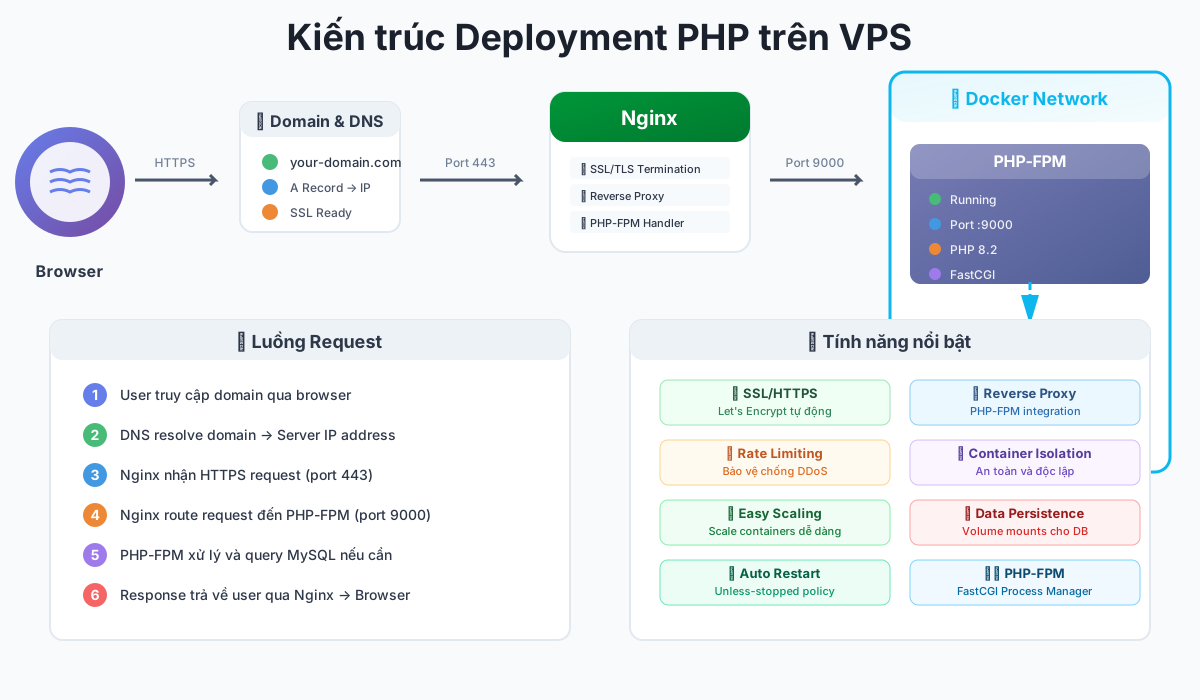
Request flow:
User → Domain → DNS → Nginx (Port 80/443)
                        ↓
                   Docker Network
                        ↓
              ┌─────────┴─────────┐
              ↓                   ↓
        PHP-FPM Container   MySQL Container
        (Port 9000)         (Port 3306)
Components:
- Nginx: Reverse proxy, handles SSL, routes requests to PHP‑FPM
- PHP‑FPM container: Runs the PHP application via PHP‑FPM
- MySQL container: Database server
- Docker network: Connects the containers
Server Setup
1. SSH into the server
ssh root@your_server_ip
# or if you use a non-root user
ssh user@your_server_ip
2. Update the system
sudo apt update && sudo apt upgrade -y
3. Install basic packages
sudo apt install -y curl wget git build-essential
Install Docker and Docker Compose
Install Docker
# Remove old versions
for pkg in docker.io docker-doc docker-compose docker-compose-v2 podman-docker containerd runc; do sudo apt-get remove $pkg; done

# Add Docker's official GPG key:
sudo apt-get update
sudo apt-get install ca-certificates curl
sudo install -m 0755 -d /etc/apt/keyrings
sudo curl -fsSL https://download.docker.com/linux/ubuntu/gpg -o /etc/apt/keyrings/docker.asc
sudo chmod a+r /etc/apt/keyrings/docker.asc

# Add the repository to Apt sources:
echo \
  "deb [arch=$(dpkg --print-architecture) signed-by=/etc/apt/keyrings/docker.asc] https://download.docker.com/linux/ubuntu \
  $(. /etc/os-release && echo "${UBUNTU_CODENAME:-$VERSION_CODENAME}") stable" | \
sudo tee /etc/apt/sources.list.d/docker.list > /dev/null
sudo apt-get update

# Install latest version
sudo apt-get install docker-ce docker-ce-cli containerd.io docker-buildx-plugin docker-compose-plugin

# Start Docker service
sudo systemctl start docker
sudo systemctl enable docker

# Verify installation
docker --version
Add your user to the docker group (optional)
sudo usermod -aG docker $USER
newgrp docker
Nginx Setup
This section follows the official DigitalOcean guide on installing Nginx on Ubuntu 20.04.
Install Nginx
# Update package index
sudo apt update

# Install Nginx
sudo apt install nginx

# Verify installation
nginx -v
Adjust the firewall
Before testing Nginx, adjust your firewall to allow traffic:
# Check firewall status
sudo ufw status

# If the firewall is not active, enable it
sudo ufw enable

# Allow OpenSSH (important – otherwise you may lock yourself out)
sudo ufw allow 'OpenSSH'

# Allow Nginx traffic
sudo ufw allow 'Nginx Full'

# Verify firewall rules
sudo ufw status
WARNING
Important: Always allow OpenSSH before enabling the firewall, or you may lock yourself out of the server!
Check the web server
# Check Nginx status
sudo systemctl status nginx

# If it's not running, start Nginx
sudo systemctl start nginx

# Enable Nginx to start automatically on reboot
sudo systemctl enable nginx
Configure server blocks for PHP
# Create a config file for your domain
sudo nano /etc/nginx/sites-available/your-domain.com
Example config file for PHP with PHP‑FPM:
server {
    listen 80;
    listen [::]:80;

    server_name your-domain.com www.your-domain.com;

    root /var/www/html;
    index index.php index.html index.htm;

    # Logging
    access_log /var/log/nginx/your-domain.access.log;
    error_log /var/log/nginx/your-domain.error.log;

    location / {
        try_files $uri $uri/ =404;
    }

    location ~ \.php$ {
        include snippets/fastcgi-php.conf;
        fastcgi_pass php-fpm:9000;  # PHP-FPM container
        fastcgi_param SCRIPT_FILENAME $document_root$fastcgi_script_name;
        include fastcgi_params;
    }

    location ~ /\.ht {
        deny all;
    }
}
Configure the PHP Application
1. Project structure
From the examples directory View on GitHub, the project structure looks like this:
php-simple-app/
├── src/                    # PHP source code
│   ├── index.php          # Main entry point
│   ├── config.php         # Configuration
│   └── db.php             # Database connection
├── public/                # Public files (assets)
├── Dockerfile             # PHP-FPM container definition
├── docker-compose.yml     # Multi-container setup
├── nginx.conf             # Nginx configuration
├── deploy.sh              # Deployment script
└── .env.example           # Environment variables example
2. Dockerfile for PHP‑FPM
FROM php:8.2-fpm-alpine
# Install system dependencies
RUN apk add --no-cache \
git \
curl \
libpng-dev \
libzip-dev \
zip \
unzip \
mysql-client
# Install PHP extensions
RUN docker-php-ext-install pdo_mysql mysqli zip gd
# Install Composer
COPY /usr/bin/composer /usr/bin/composer
# Set working directory
WORKDIR /var/www/html
# Copy application files
COPY src/ /var/www/html/
COPY public/ /var/www/html/public/
# Set permissions
RUN chown -R www-data:www-data /var/www/html
RUN chmod -R 755 /var/www/html
# Expose PHP-FPM port
EXPOSE 9000
CMD ["php-fpm"]
3. docker-compose.yml
services:
    nginx:
        image: nginx:alpine
        ports:
            - "80:80"
            - "443:443"
        volumes:
            - ./src:/var/www/html:ro
            - ./nginx.conf:/etc/nginx/conf.d/default.conf:ro
        depends_on:
            - php-fpm
        networks:
            - app_network

    php-fpm:
        build:
            context: .
            dockerfile: Dockerfile
        volumes:
            - ./src:/var/www/html
            - ./public:/var/www/html/public
        environment:
            - DB_HOST=mysql
            - DB_NAME=${DB_NAME}
            - DB_USER=${DB_USER}
            - DB_PASSWORD=${DB_PASSWORD}
        depends_on:
            - mysql
        networks:
            - app_network

    mysql:
        image: mysql:8.0
        environment:
            MYSQL_ROOT_PASSWORD: ${MYSQL_ROOT_PASSWORD}
            MYSQL_DATABASE: ${DB_NAME}
            MYSQL_USER: ${DB_USER}
            MYSQL_PASSWORD: ${DB_PASSWORD}
        volumes:
            - mysql_data:/var/lib/mysql
        ports:
            - "3306:3306"
        networks:
            - app_network

volumes:
    mysql_data:

networks:
    app_network:
        driver: bridge
4. Example PHP application (index.php)
<?php
require_once 'config.php';
require_once 'db.php';

$db = new Database();
$conn = $db->getConnection();

// Example query
$stmt = $conn->prepare("SELECT * FROM users LIMIT 10");
$stmt->execute();
$users = $stmt->fetchAll(PDO::FETCH_ASSOC);

?>
<!DOCTYPE html>
<html lang="en">
<head>
    <meta charset="UTF-8">
    <meta name="viewport" content="width=device-width, initial-scale=1.0">
    <title>PHP Simple App</title>
    <style>
        body {
            font-family: Arial, sans-serif;
            max-width: 1200px;
            margin: 0 auto;
            padding: 20px;
            background: #f5f5f5;
        }
        .container {
            background: white;
            padding: 30px;
            border-radius: 8px;
            box-shadow: 0 2px 4px rgba(0,0,0,0.1);
        }
        h1 {
            color: #333;
        }
        table {
            width: 100%;
            border-collapse: collapse;
            margin-top: 20px;
        }
        th, td {
            padding: 12px;
            text-align: left;
            border-bottom: 1px solid #ddd;
        }
        th {
            background-color: #4CAF50;
            color: white;
        }
        .info {
            background: #e3f2fd;
            padding: 15px;
            border-radius: 4px;
            margin-bottom: 20px;
        }
    </style>
</head>
<body>
    <div class="container">
        <h1>🚀 PHP Application on VPS</h1>

        <div class="info">
            <strong>Server Info:</strong><br>
            PHP Version: <?php echo phpversion(); ?><br>
            Server: <?php echo $_SERVER['SERVER_SOFTWARE']; ?><br>
            Document Root: <?php echo $_SERVER['DOCUMENT_ROOT']; ?>
        </div>

        <h2>Database Connection: ✅ Connected</h2>

        <table>
            <thead>
                <tr>
                    <th>ID</th>
                    <th>Name</th>
                    <th>Email</th>
                    <th>Created At</th>
                </tr>
            </thead>
            <tbody>
                <?php if (empty($users)): ?>
                    <tr>
                        <td colspan="4">No users found. Run database migrations first.</td>
                    </tr>
                <?php else: ?>
                    <?php foreach ($users as $user): ?>
                        <tr>
                            <td><?php echo htmlspecialchars($user['id']); ?></td>
                            <td><?php echo htmlspecialchars($user['name']); ?></td>
                            <td><?php echo htmlspecialchars($user['email']); ?></td>
                            <td><?php echo htmlspecialchars($user['created_at']); ?></td>
                        </tr>
                    <?php endforeach; ?>
                <?php endif; ?>
            </tbody>
        </table>
    </div>
</body>
</html>
Configure MySQL
Database setup
After the containers are running, set up the database:
# Enter the MySQL container
docker exec -it php-simple-app-mysql-1 mysql -u root -p

# Create database and user (if not already created)
CREATE DATABASE IF NOT EXISTS myapp_db;
CREATE USER IF NOT EXISTS 'myuser'@'%' IDENTIFIED BY 'mypassword';
GRANT ALL PRIVILEGES ON myapp_db.* TO 'myuser'@'%';
FLUSH PRIVILEGES;
EXIT;
Create tables
# Enter the PHP container
docker exec -it php-simple-app-php-fpm-1 sh

# Or import an SQL file
docker exec -i php-simple-app-mysql-1 mysql -u myuser -pmypassword myapp_db < schema.sql
Example schema.sql:
CREATE TABLE IF NOT EXISTS users (
    id INT AUTO_INCREMENT PRIMARY KEY,
    name VARCHAR(100) NOT NULL,
    email VARCHAR(100) UNIQUE NOT NULL,
    created_at TIMESTAMP DEFAULT CURRENT_TIMESTAMP
);

INSERT INTO users (name, email) VALUES
('John Doe', 'john@example.com'),
('Jane Smith', 'jane@example.com'),
('Bob Johnson', 'bob@example.com');
Deploy Script
The deploy script automates the entire deployment process:
Steps performed by the script:
| Step | Task | Details |
|---|---|---|
| 1. Setup packages | Install dependencies | curl, git, Docker, Docker Compose, Nginx |
| 2. Clone repository | Download source code | Clone from Git or copy local files |
| 3. Generate SSL | Create SSL certificate | Use Certbot (Let's Encrypt) |
| 4. Build application | Build PHP‑FPM container | Docker build using the Dockerfile |
| 5. Configure Nginx | Setup reverse proxy | Configure HTTPS, PHP‑FPM integration |
| 6. Setup database | Initialize MySQL | Create database and tables |
| 7. Start services | Start containers | docker-compose up -d |
| 8. Setup cron | Automated tasks | SSL renewal, backups |
Using the deploy script
# Download the script
curl -o ~/deploy-php.sh https://raw.githubusercontent.com/xirothedev/blog-tech/main/deploy-php.sh

# Edit variables
nano ~/deploy-php.sh
# Change: EMAIL, DOMAIN_NAME, DB credentials

# Run the script
chmod +x ~/deploy-php.sh
./deploy-php.sh
Example deploy.sh
#!/bin/bash

set -e

# Configuration
EMAIL="your-email@example.com"
DOMAIN="your-domain.com"
PROJECT_DIR="/opt/php-app"

echo "Starting PHP deployment..."

# Update system
sudo apt update && sudo apt upgrade -y

# Install Docker
curl -fsSL https://get.docker.com -o get-docker.sh
sudo sh get-docker.sh

# Install Docker Compose
sudo curl -L "https://github.com/docker/compose/releases/latest/download/docker-compose-$(uname -s)-$(uname -m)" -o /usr/local/bin/docker-compose
sudo chmod +x /usr/local/bin/docker-compose

# Install Nginx
sudo apt install -y nginx

# Copy project files
if [ -d "$PROJECT_DIR" ]; then
    cd $PROJECT_DIR && git pull
else
    git clone https://github.com/xirothedev/blog-tech/php-app.git $PROJECT_DIR
    cd $PROJECT_DIR
fi

# Generate SSL certificate
sudo apt install -y certbot python3-certbot-nginx
sudo certbot --nginx -d $DOMAIN --non-interactive --agree-tos -m $EMAIL

# Build and start containers
cd $PROJECT_DIR
sudo docker-compose build
sudo docker-compose up -d

echo "Deployment completed!"
SSL Certificate with Let's Encrypt
Install Certbot
sudo apt install -y certbot python3-certbot-nginx
Generate SSL certificate
# Automatic configuration with Nginx
sudo certbot --nginx -d your-domain.com

# Or only generate the certificate
sudo certbot certonly --nginx -d your-domain.com
Auto‑renewal
Certbot automatically sets up a cron job to renew the certificate:
# Test renewal
sudo certbot renew --dry-run

# Check renewal status
sudo systemctl status certbot.timer
Rate Limiting and Security
Nginx rate limiting
# /etc/nginx/nginx.conf
http {
    limit_req_zone $binary_remote_addr zone=api_limit:10m rate=10r/s;

    server {
        location / {
            limit_req zone=api_limit burst=20 nodelay;
            try_files $uri $uri/ /index.php?$query_string;
        }
    }
}
Security headers
server {
    # Security headers
    add_header X-Frame-Options "SAMEORIGIN" always;
    add_header X-Content-Type-Options "nosniff" always;
    add_header X-XSS-Protection "1; mode=block" always;
    add_header Strict-Transport-Security "max-age=31536000; includeSubDomains" always;

    # Hide PHP version
    fastcgi_hide_header X-Powered-By;
}
PHP security settings
In php.ini:
; Disable dangerous functions
disable_functions = exec,passthru,shell_exec,system,proc_open,popen

; Hide PHP version
expose_php = Off

; Error reporting (production)
display_errors = Off
log_errors = On
Updates and Maintenance
Maintenance commands
| Purpose | Command | Description |
|---|---|---|
| Check containers | docker-compose ps | View container status |
| View PHP logs | docker-compose logs php-fpm | View PHP‑FPM logs |
| View Nginx logs | docker-compose logs nginx | View Nginx logs |
| View MySQL logs | docker-compose logs mysql | View MySQL logs |
| Restart services | docker-compose restart | Restart all services |
| Stop services | docker-compose down | Stop and remove containers |
| Start services | docker-compose up -d | Start containers in the background |
| Enter PHP container | docker exec -it php-fpm-1 sh | Enter the PHP container |
| Enter MySQL container | docker exec -it mysql-1 mysql -u root -p | Enter MySQL CLI |
Backup strategy
| Backup type | Frequency | How to perform |
|---|---|---|
| Database backup | Daily | mysqldump or Docker volume backup |
| Application code | Per deployment | Git repository |
| Environment variables | On changes | Secure storage |
| Docker volumes | Weekly | Volume backup scripts |
Backup database
# Backup MySQL
docker exec php-simple-app-mysql-1 mysqldump -u myuser -pmypassword myapp_db > backup_$(date +%Y%m%d).sql

# Restore from backup
docker exec -i php-simple-app-mysql-1 mysql -u myuser -pmypassword myapp_db < backup_20250101.sql
Troubleshooting
Common issues
| Issue | Possible cause | Solution |
|---|---|---|
| 502 Bad Gateway | PHP‑FPM not running | Check docker-compose ps and logs |
| Database connection error | Wrong connection string | Check DB credentials in .env |
| Nginx 404 | Incorrect file paths | Check root and index settings |
| PHP errors not showing | display_errors = Off | Check php.ini or logs |
| SSL certificate fail | DNS not yet propagated | Wait for DNS to update |
Debug commands
# Check Docker containers
docker ps -a

# Check Docker logs
docker-compose logs --tail=100 php-fpm
docker-compose logs --tail=100 nginx

# Check Nginx config
sudo nginx -t

# Check PHP-FPM status
docker exec php-fpm-1 php-fpm -v

# Test database connection
docker exec mysql-1 mysql -u myuser -pmypassword -e "SHOW DATABASES;"
Best Practices
1. Environment variables
| Variable | Description | Security |
|---|---|---|
DB_HOST | MySQL host | ✅ Do not commit to Git |
DB_NAME | Database name | ⚠️ Can be committed if not sensitive |
DB_USER | Database user | ✅ Do not commit |
DB_PASSWORD | Database password | ✅ Do not commit |
APP_ENV | Environment (prod/dev) | ✅ Set in Docker |
2. PHP best practices
| Practice | Benefit | Implementation |
|---|---|---|
| Use prepared statements | Prevent SQL injection | PDO or mysqli |
| Error handling | Better debugging | try-catch blocks |
| Input validation | Security | Filter input, validate |
| Cache opcache | Performance | Enable OPcache |
| Composer autoload | Better code organization | Use PSR-4 autoloading |
3. Docker best practices
| Practice | Reason | Implementation |
|---|---|---|
| Multi‑stage builds | Reduce image size | Separate build and runtime stages |
| Non‑root user | Security | Run as www-data user |
| .dockerignore | Faster builds | Exclude vendor, .git, etc. |
| Health checks | Auto‑recovery | healthcheck in docker-compose |
| Resource limits | Prevent exhaustion | Set CPU/memory limits |
4. Security checklist
- ✅ Keep the system updated
- ✅ Use strong passwords
- ✅ Enable firewall (UFW)
- ✅ Use SSH key authentication
- ✅ Run regular security audits
- ✅ Monitor logs
- ✅ Use HTTPS only
- ✅ Configure security headers in Nginx
- ✅ Apply rate limiting
- ✅ Restrict database access
- ✅ Hide PHP version
- ✅ Disable dangerous PHP functions
Conclusion
Deploying PHP to a VPS can be complex, but it brings many benefits: full control, flexible cost, and good performance. With Docker and Nginx, you can set up a production‑ready deployment.
Key takeaways
- ✅ Docker simplifies deployment – containerization makes management easier
- ✅ Nginx + PHP‑FPM – strong performance for PHP applications
- ✅ MySQL for data – reliable database solution
- ✅ SSL/HTTPS – required for production security
- ✅ Automation is key – deploy scripts save time
Further resources
- 📦 PHP Simple App Example – sample source code View on GitHub
- 📚 PHP Documentation
- 🐳 Docker Documentation
- 🌐 Nginx Documentation
- 📘 MySQL Documentation
Next steps
- Clone the example project: experiment with php-simple-app
- Customize: adapt it to your own needs
- Deploy: run the deploy script on your VPS
- Monitor: set up monitoring and alerting
- Optimize: tune performance over time
TIP
Start from the example: use php-simple-app as a starting point to understand the setup and then customize it for your project.